가비아에서 dailylime.kr 블로그 도메인 구입 + DNSever DNS 구축기

도메인 Flex 해버렸습니다

갑자기 친구랑 대화하던 도중, 도메인 관련한 얘기가 나와서 하다보니, 결국 블로그 도메인을 구입해버리고 말았습니다…

갑자기 구매해버린 도메인

구 .ml 도메인을 이미 소유하고 있었음에도 불구하고(https://blog.stabilization-in.ml), DNSever와 같은 서비스는 .ml 도메인을 아예 블럭했고(아마 무료 도메인이라 다들 등록하려고 해서 그런가 보네요), 이 블로그만을 위한 도메인을 따로 마련하는게 좋을 것 같아 겸사겸사 구매했습니다. 이름은 Daily Lime(일일 라임?)으로, 라임오렌지파이의 일상을 줄여서 키워드로 만들어보았습니다.

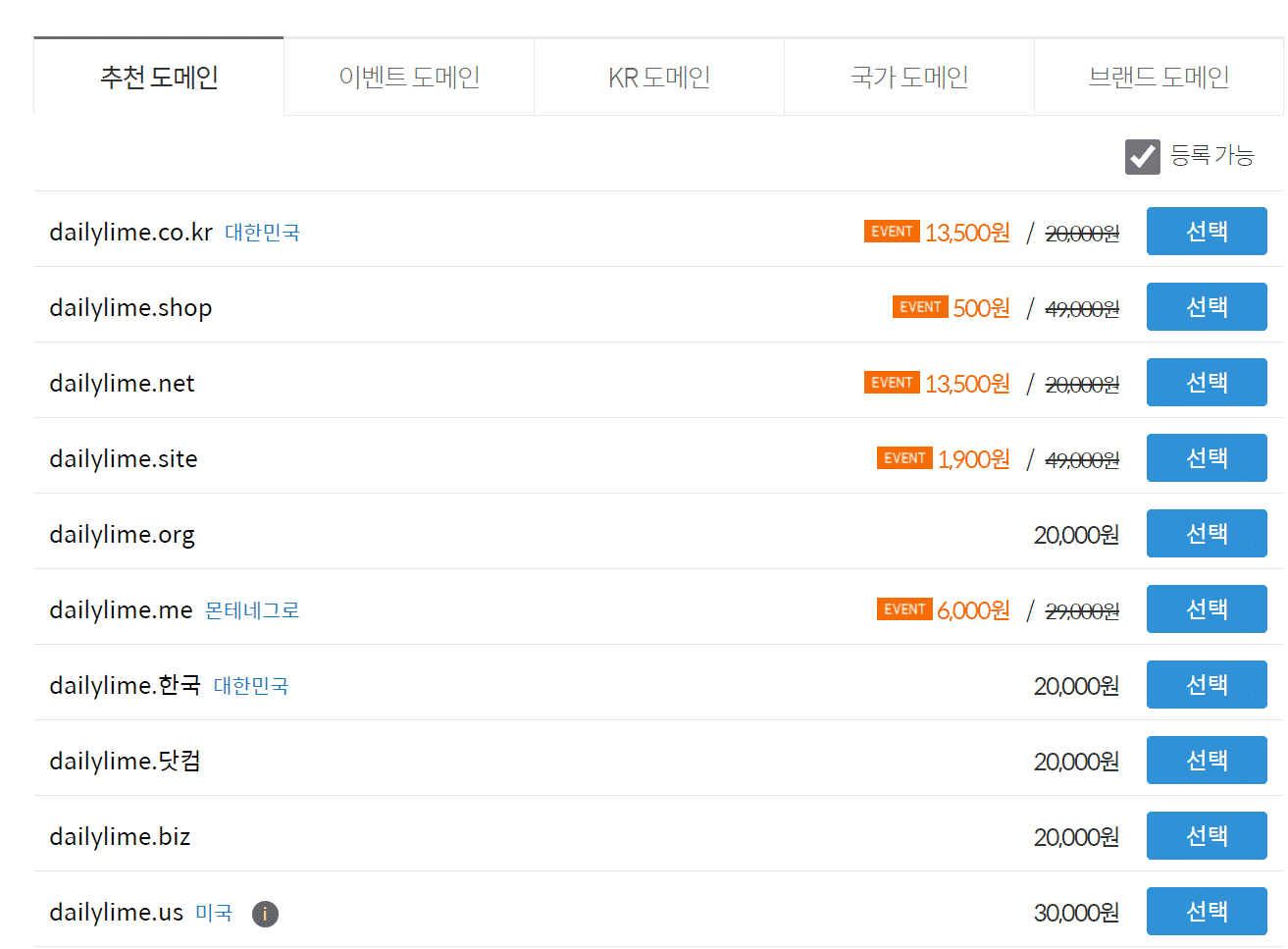
가비아에서 행사중인 도메인

현재 가비아에서 도메인을 할인해주는 행사를 하고 있습니다. 마침 제가 산 도메인도 저렴해서 바로 장만했습니다!

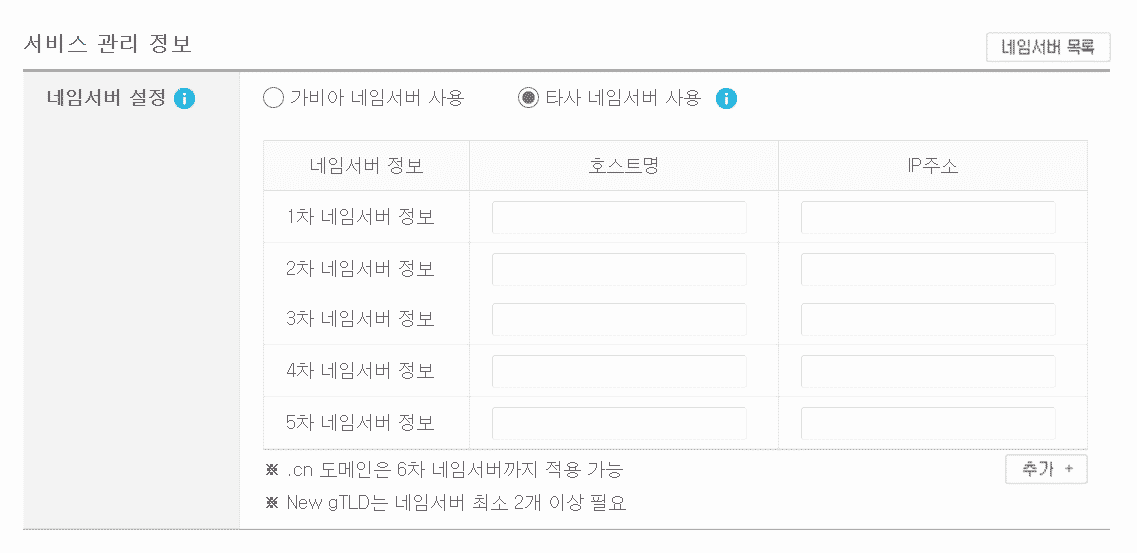
도메인 구입 시 네임서버(NS) 입력 화면

구매할 때, 네임서버를 선택하는 부분이 있습니다. 이 부분에서 기본 네임서버를 선택하면,가비아에서 제공하는 기본 네임 서버 서비스의 이용이 가능합니다 (대부분의 경우에, 기본 제공 네임서버를 이용하여도 괜찮습니다). 다만 TXT 레코드나 와일드카드 A 레코드, CAA 레코드 등, 여러 DNS 세부 세팅을 건드리기 위해서는 DNSever를 사용하거나, 직접 bind9 DNS 서버를 구축해야 합니다. 저는 세부 세팅을 건드릴 일이 많을 것 같아, DNSever에서 제공하는 클라우드 DNS 서버를 사용하도록 하겠습니다.

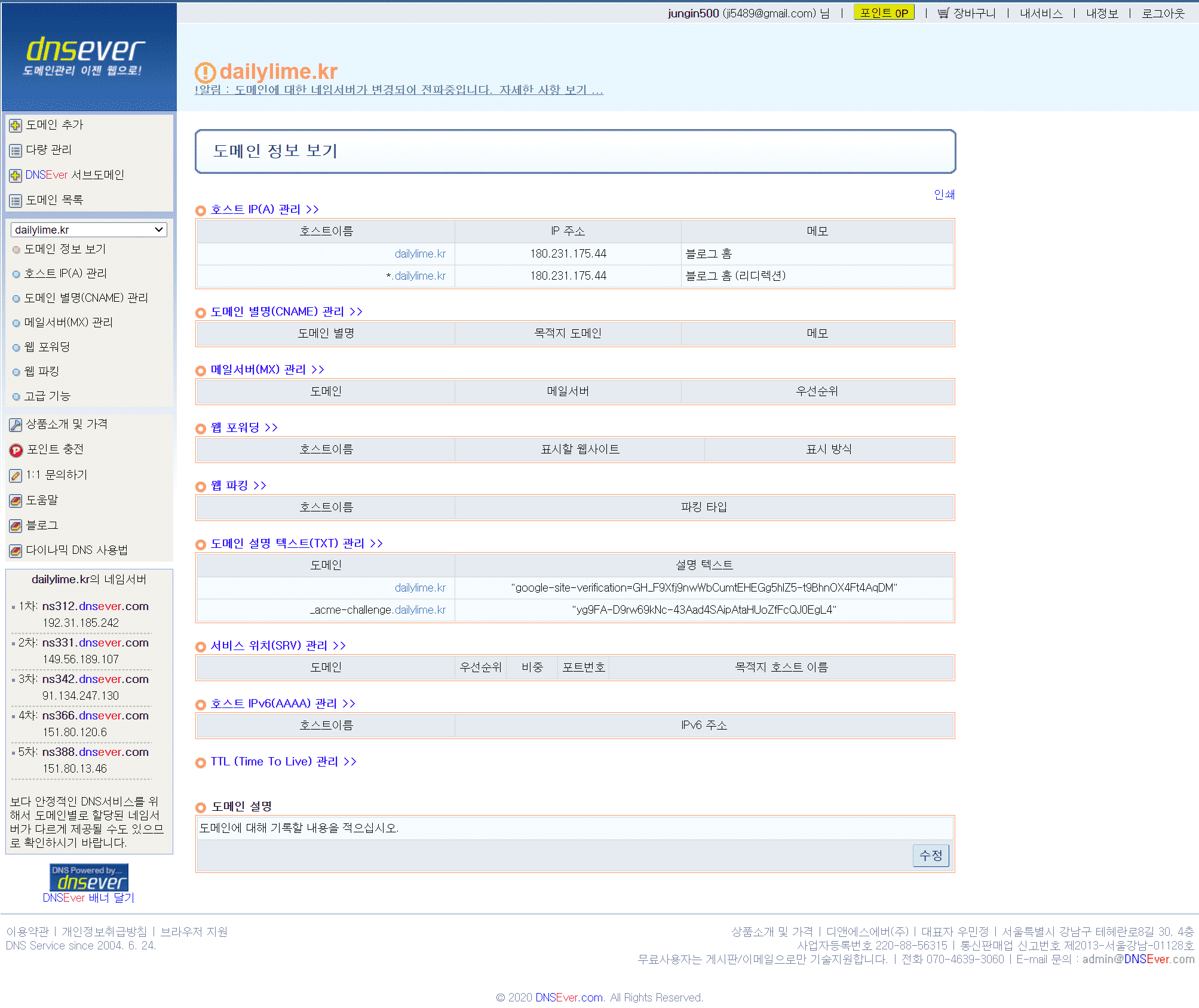
DNSever 관리 페이지 홈 화면

DNSever에 내 도메인을 등록하게 되면, 네임 서버를 설정하는 페이지가 나타나 총 3~5개의 네임서버를 부여해줍니다. 이 네임서버 리스트를, 가비아의 네임서버 입력 화면에 입력해주면 끝입니다. 도메인을 결제한 뒤, 30분~4시간까지 기다리면 DNSever에서 도메인을 설정할 수 있는 기능이 활성화됩니다. 이 때부터는 보통 접속이 가능하나 전세계 DNS로 전파되는데는 2~3일에서 길게는 일주일까지 걸리므로 이 점을 유의하시면 됩니다.

호스트 IP(A) 관리 부분이 저희가 눈 여겨 볼 부분입니다. 기본적으로 도메인에는 아무것도 연결되어 있지 않아 그 자체로는 사용성이 전무합니다. 그러므로 도메인을 실제 서버 IP와 매핑하는 작업이 필요합니다. 이 때, 호스트 IP(네임서버 상 A 레코드)에 서버의 IP를 입력함으로써 매핑이 진행됩니다.

매핑 시, 보통은 위와 같이 “www.”와 같은 서브사이트가 붙지 않은 통짜 도메인(dailylime.kr), 그리고 모든 서브사이트를 의미하는 Asterisk(*) 서브사이트 두 개를 같이 사용하면, 모든 도메인과 서브사이트에 대해 매핑하게 됩니다.

현재는 아무 서브사이트(home.dailylime.kr, blog.dailylime.kr)나 입력해도 다시 dailylime.kr로 리디렉팅 되는데, 이 이유는 서브사이트가 있을 경우 무조건 루트 도메인(dailylime.kr)으로 다시 리디렉팅 되도록 웹 서버내에 설정되어 있기 때문입니다.

마치며

저는 이미 개인 웹 서버를 소유하여 가동하고 있습니다. 이 때문에, 도메인을 기존의 서버에 연결할 수 있었습니다.

따로 서버가 없으신 분들은 웹서버 호스팅을 위한 각종 플랫폼이나 무료 웹 서비스 플랫폼(AWS, Azure, Oracle Cloud)들이 있습니다. 아니면, 블로그 목적의 운영이라면 단순히 현재 운영중인 블로그(다음/네이버/티스토리 등등)에 직접 연결하는 방법도 있습니다. 해당 키워드 “XXX 블로그 도메인 연결” 로 구글에 검색해보세요.

One UI 2.5 업데이트 – 갤럭시 S20 업데이트 후기 (G981NKSU1BTH2, G981NOKR1BTH2)

One UI 2.5로 업데이트!!

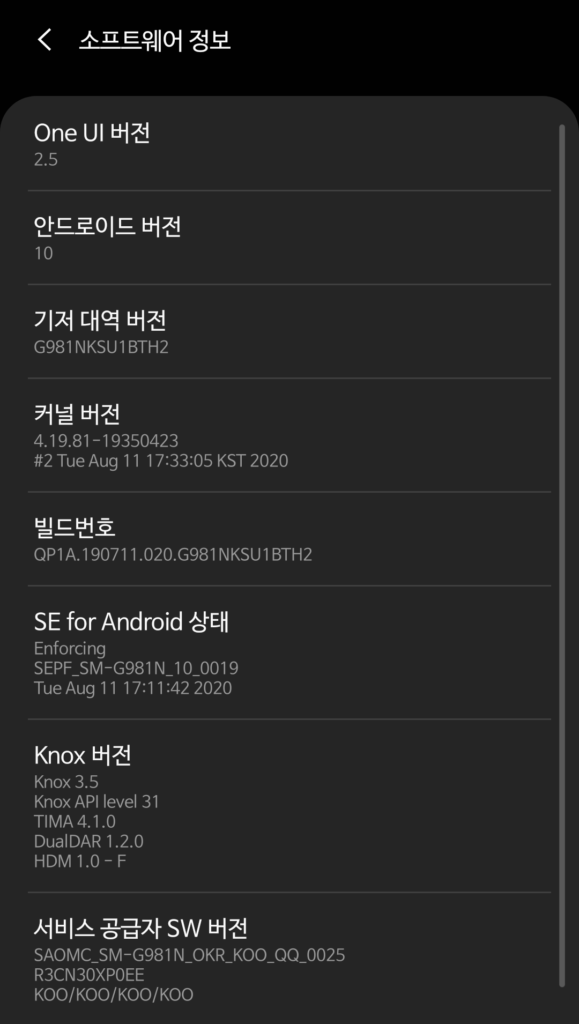
오늘 8월 25일자로, 갤럭시 S20의 One UI 2.5 펌웨어 업데이트가 릴리즈되어 바로 업데이트해보았습니다 (G981NKSU1BTH2, G981NOKR1BTH2).

이번 업데이트로 크게 바뀐 부분을 와 닿는 순서대로 나열해 보았습니다. 이 외에도 변경된 부분이 있을 수 있으나 제가 못 봤거나, 못 찾은 것들이 있을수도 있습니다….!

One UI 2.5 #1 – 카메라 어플리케이션 프로 동영상 개선 및 와이드 동영상 촬영 가능

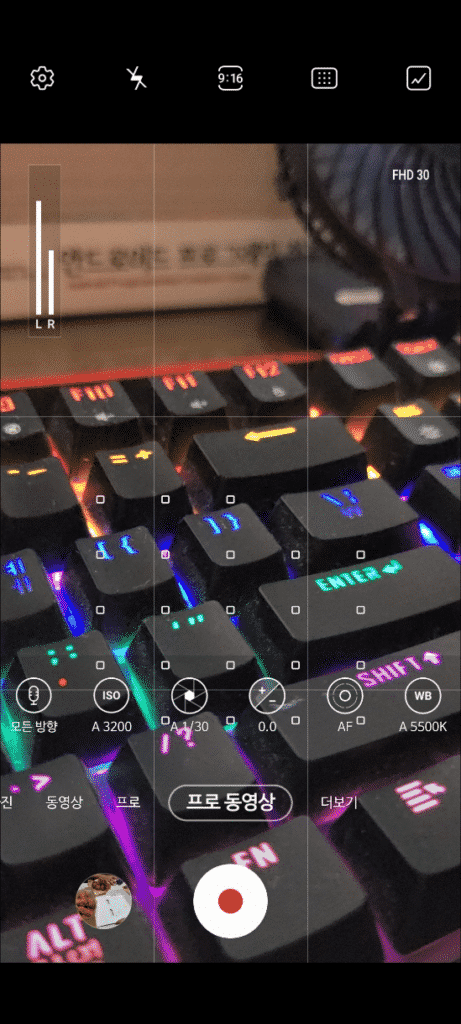
프로 동영상 기능이 개선되어, 카메라 우측에 “FHD 30″이라는 해상도 표시가 되는 것을 볼 수 있습니다. 저는 좌측의 오디오미터도 처음 봤는데, 프로 동영상 촬영 기능이 많이 좋아진 것 같네요.

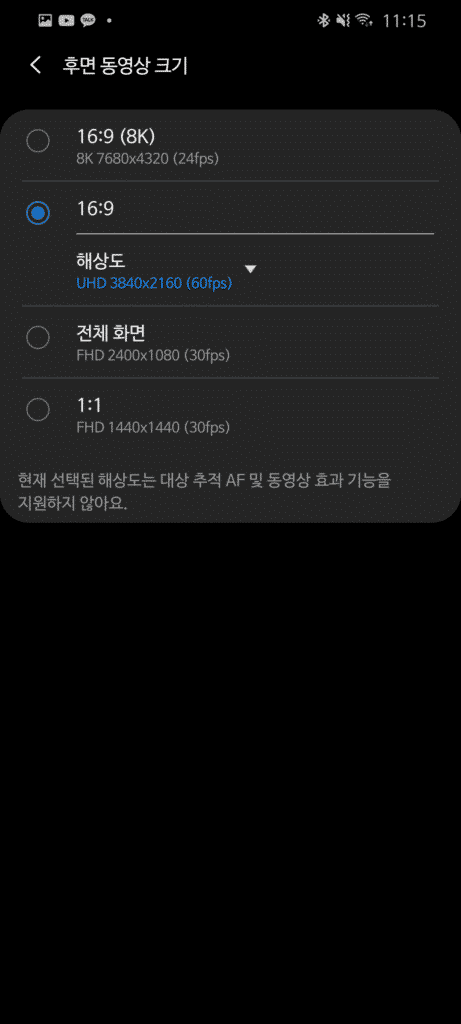
추가로, 프로 동영상 한정으로 후면 동영상 촬영해상도에 와이드 해상도 (21:9 8K, 21:9 UHD, 21:9 FHD)가 추가되었습니다. 좀더 영화같은 길-쭉한 영상을 찍을 수 있게 되었어요.

One UI 2.5 #2 -키보드에 YouTube 검색 및 빠른 삽입 기능 추가

키보드에 추가 기능으로 “YouTube 동영상 검색 및 빠른 삽입”(가칭) 기능이 추가되었습니다. 이 기능으로 정말 간단하게 유튜브에서 영상을 검색해서 링크를 삽입할 수 있게 되었습니다. (짤을 미리 키워드로 기억해뒀다가 그때그때 써먹는걸로 유용할지도…?)

One UI 2.5 #3 -Wireless DeX (무선 덱스) 기능 추가

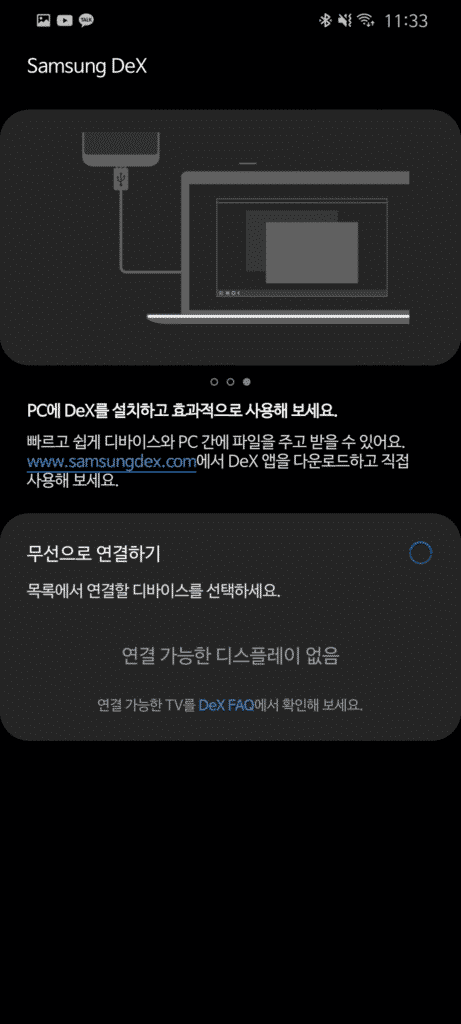
무선 덱스가 추가되었습니다. 이제 USB-C to USB-C나, USB-C to HDMI 케이블 없이도 DLNA/Miracast를 지원하는 네트워크 연결 모니터(지원하는 스마트TV 등을 말합니다)에 무선으로 DeX를 띄울 수 있게 되었어요. 저는 모니터가 없어서 테스트해볼 수 없었지만 유용한 기능임에는 틀림 없습니다…!

One UI 2.5 #4 -DeX 업데이트

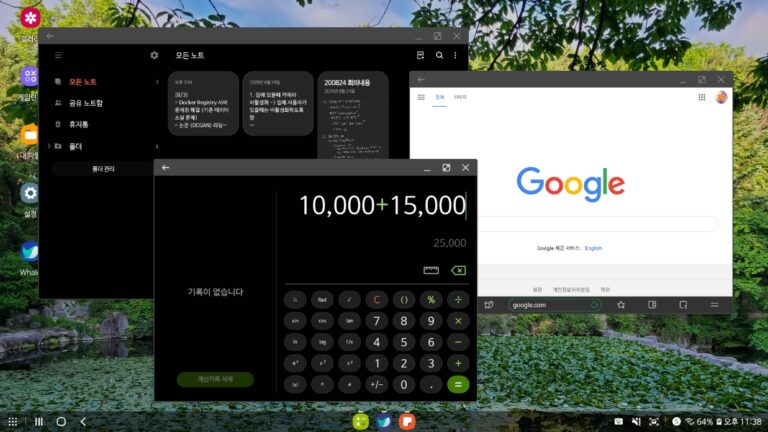
DeX의 UI가 업데이트되었습니다. 저는 PC에 DeX를 연결해서 확인해봤는데요, 하단 바의 UI 디자인이라던가, 창 틀 모양같은 것들이 조금 더 깔끔해져서 보기 좋았어요…!

이상으로 업데이트된 내용을 확인해봤습니다. 곧 업데이트될거라는 각종 루머에 하루하루 <소프트웨어 업데이트> 버튼을 눌러보다가 문득 발견했는데, 많은 부분에서 갤럭시 노트20을 따라 소프트웨어 업데이트가 진행된 것 같습니다. Samsung Notes 어플리케이션 역시 버전 4로 별도로 Galaxy Store에서 업데이트받을 수 있으니, 확인해보세요. 이번 업데이트는 갤럭시 탭 S7에 적용된 각종 편의성 기능을 포함하고 있다고 합니다.

WSL2 CUDA – WSL2에서 Ubuntu와 CUDA 사용하기

Windows Insider Preview 버전 문제 (2020-10-16 빌드에서 해결됨)

Windows 10 Insider Preview 버전에 따라서, WSL2나 CUDA가 아예 동작하지 않는 경우가 많습니다. 여기에서 버전별 작동여부를 확인 후에 설치하시는것이 좋을것 같네요.

WSL2에서 Ubuntu와 CUDA 사용하기

이제 Windows 10 Build 2020에서는 Windows Subsystem for Linux 2와 GPU 가속 지원 기능을 함께 사용할 수 있습니다. 이 가이드에서는 Windows 10 디바이스에서 WSL2와 Ubuntu를 이용하여 CUDA 개발 환경을 구축할 수 있도록 합니다.

이 튜토리얼에서는 WSL에 Docker를 구동하여, 결과적으로 Jupyter Notebook 내에서 CUDA를 End-to-End로 실행할 수 있도록 합니다. 구체적으로는 아래와 같은 구성으로 진행됩니다.

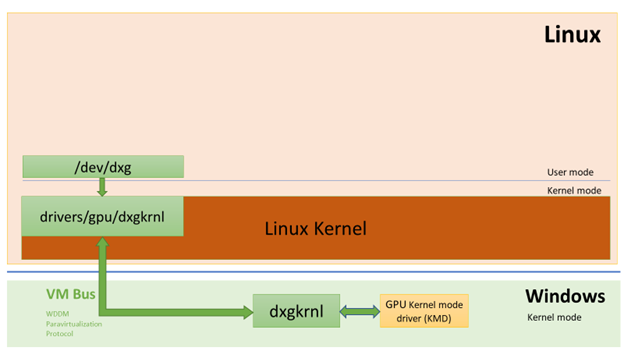
In the Linux guest, the dxgkrnl driver creates the /dev/dxg device for user mode components to access. The requests that come from GPU applications get forwarded to the Windows host system via VMBus where for those the host dxgkrnl driver makes calls to the KMD (Kernel Mode Driver) DDI handlers.
WSL2에서 dxgkrnl(자세히 보기)을 통한 NVIDIA GPU 지원

Windows 10 Insider Preview 채널로 변경하기

이 과정에 앞서, 설치된 Windows 10을 2020년 6월 17일자로 릴리즈된 Windows 10 Insider 빌드로 업그레이드해야 합니다. 이를 위해서 Windows Insider에 가입하여, 사용중인 기기를 Dev Channel에 등록할 수 있습니다(주로 “Fast Ring” 또는 한국어로 “초기”라고도 쓰입니다). 이 후, Windows 10 빌드 20150 버전으로 업그레이드할 수 있습니다.

Windows Insider 프로그램에 가입해서 프리뷰 버전으로 업데이트하기

Windows 10 Insider Preview 빌드 시작 페이지 또는 Windows 10 21H1 빌드 배포 노트(홍차의 꿈님 블로그)를 참조하여 개발자 빌드에 참여하는 방법을 확인하세요.

WSL2 활성화하기 – Step #1

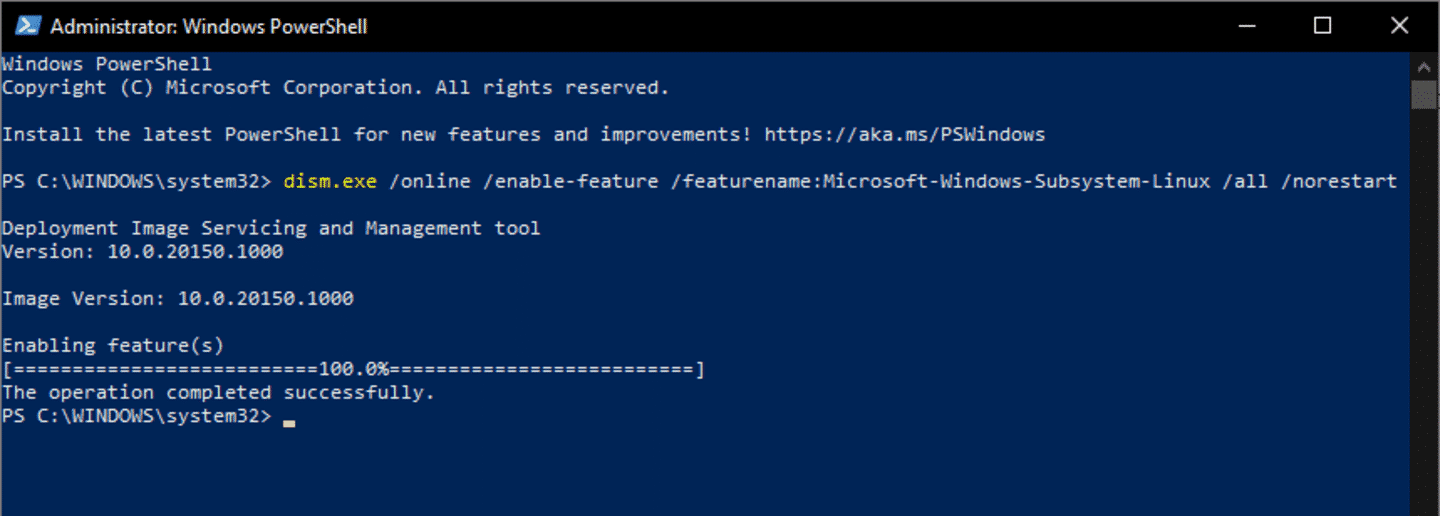
먼저, WSL Version 1을 먼저 활성화합니다. 이 과정 이후, 추후에 WSL2로 업그레이드를 합니다.

dism.exe /online /enable-feature /featurename:Microsoft-Windows-Subsystem-Linux /all /norestart
WSL1 활성화 과정

필요시 재부팅을 해야할 수 있습니다. 보통의 경우 바로 이어서 WSL2를 활성화할 수 있습니다.

dism.exe /online /enable-feature /featurename:VirtualMachinePlatform /all /norestart

이 뒤, Windows를 재시작합니다.

Restart-Computer

WSL2 활성화하기 – Step #2

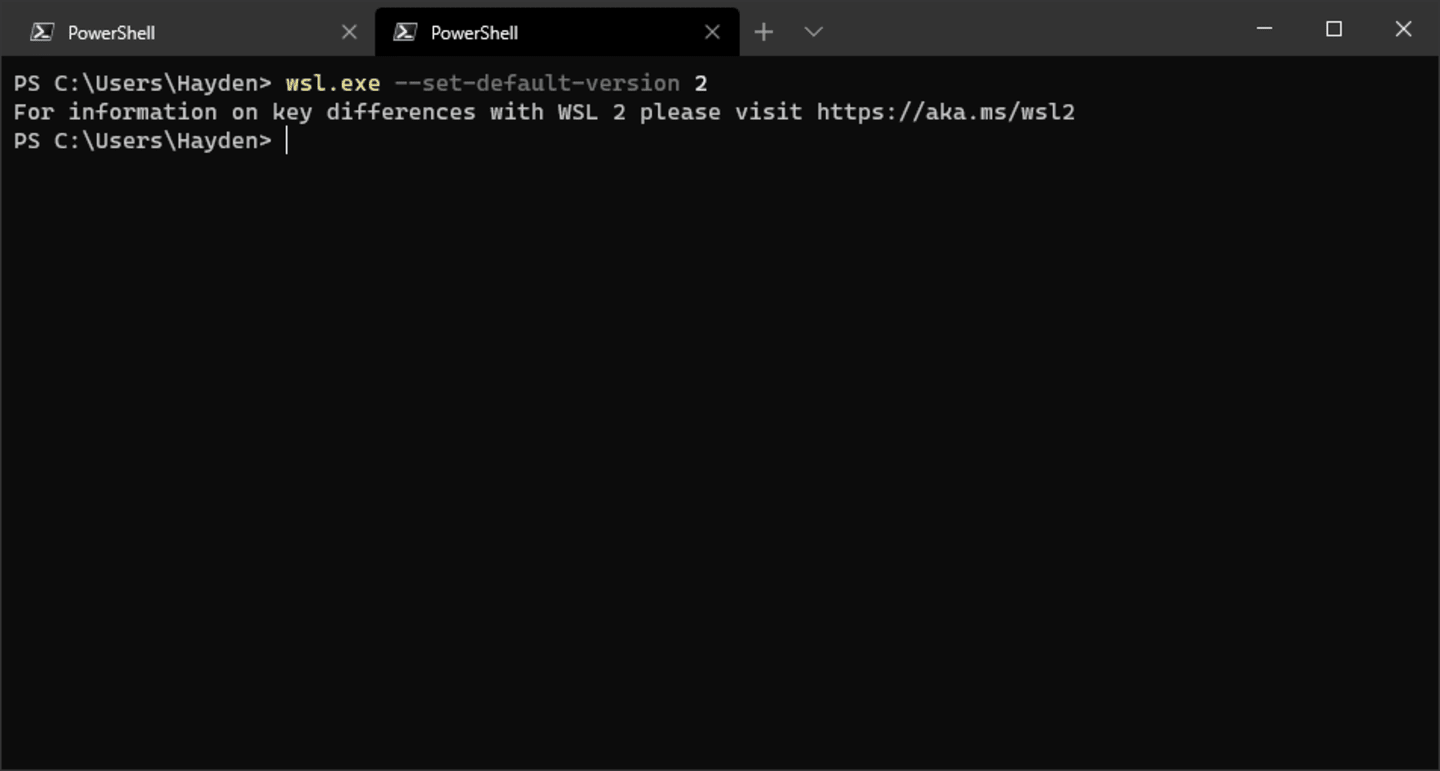
이제 재부팅을 완료하면, 시스템이 WSL2를 구동할 수 있는 상태입니다. 다만, 아직은 호환성 등을 이유로 기본값은 WSL Version 1입니다. 아래 코드로 기본 버전을 변경할 수 있습니다(원할 시 Distro마다, 기존 Version 1으로 다시 설치할 수 있습니다)

wsl.exe --set-default-version 2
WSL2를 기본값으로 설정하기

Ubuntu를 WSL에 설치하기

Microsoft Store으로부터 Ubuntu를 설치할 수 있습니다(링크).

Microsoft Store으로부터 WSL Ubuntu 다운로드

WSL에 Ubuntu를 다른 방식으로 설치할 수 있습니다(링크, 영문).

(옵션) Windows Terminal 설치하기

Windows Terminal은 MS사에서 개발한 대체 터미널 어플리케이션입니다. 기존 MobaXterm이나 Cygwin, ConEmu 등의 솔루션을 대체할 수 있는 Lightweight한 오픈소스 터미널 도구입니다(링크 또는 GitHub). 화면 렌더링의 GPU 가속 및 커스터마이징 등, 다양한 기능들을 가지고 있으며 기존 Windows의 콘솔(cmd, powershell)을 이어 더 나은 사용성을 제공합니다.

Microsoft Store으로부터 Windows Terminal 다운로드

WSL에서 Ubuntu 설치하기

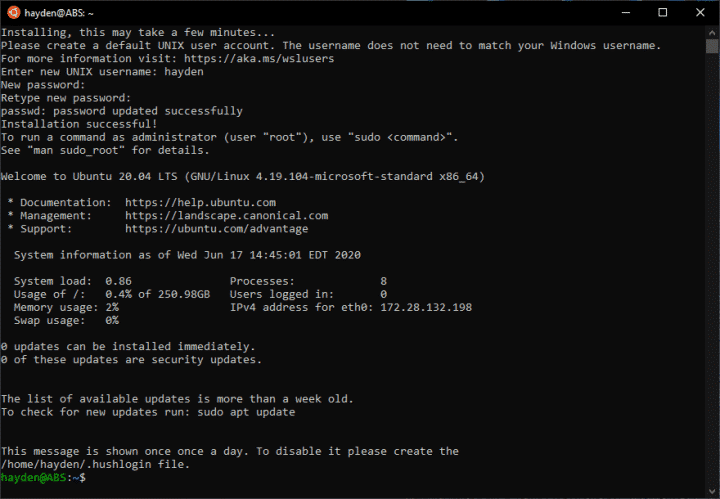
Windows의 시작 메뉴에서 Ubuntu를 선택하고, 초기 실행이므로 WSL내의 Ubuntu 사용자를 설정합니다. 이 Ubuntu 사용자Windows 사용자는 독립입니다(서로 관계가 없으며 이름이 같아도 됩니다).

WSL 초기 실행 시 Linux 계정(사용자) 생성하기

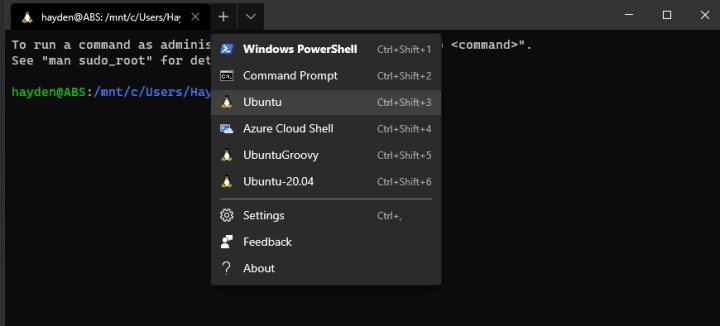
이전 단계에서 Windows Terminal을 다운로드받았다면, 사용자를 생성했던 이전 콘솔을 닫고, + 아이콘을 눌러 새로운 Ubuntu 콘솔을 열 수 있습니다:

새로운 Ubuntu 콘솔 열기

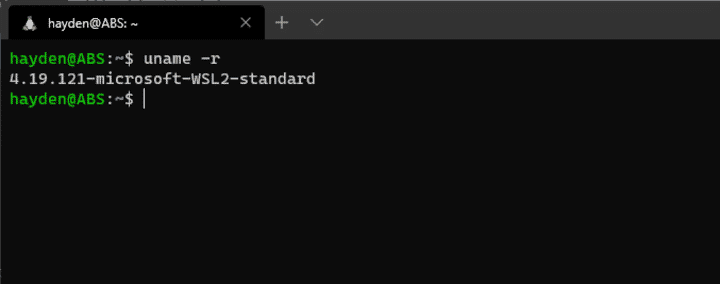
이제, 설치가 완료되었으므로 Ubuntu가 WSL2에서 구동되는지 확인해봅니다:

uname -r
Ubuntu의 커널 버전 확인

커널 버전을 확인했을 때, 4.19.121보다 높아야 합니다.
※ 그렇지 않다면, 아래 명령어를 cmd 또는 powershell 터미널에서 실행해보세요:

wsl.exe --update

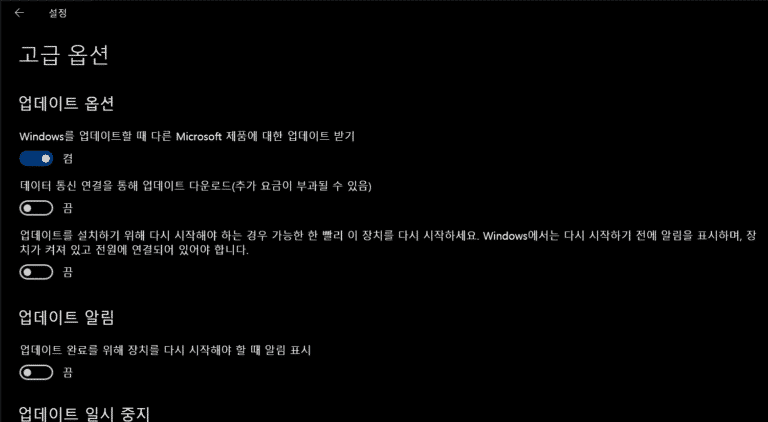
위 명령어를 실행한 뒤에도 동일한 커널 버전으로 나타난다면(WSL이나 Windows를 재시작해야할 수도 있습니다), Windows Updates 설정에서 “고급 옵션 > Windows를 업데이트할 때 다른 Microsoft 제품에 대한 업데이트 받기”가 켜져 있는지 확인합니다:

Windows Update “고급 옵션” 창
(변경할 설정확인이 쉽도록 한글로 써 두었습니다.)

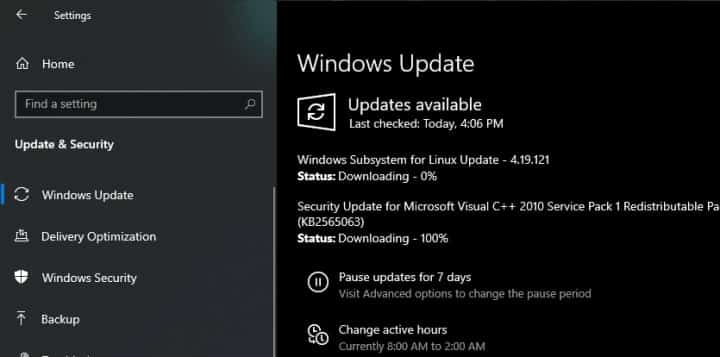
이 뒤에, Windows Update를 다시 확인합니다.

Windows 업데이트 시 “Windows Subsystem for Linux Update” 표시

Windows 10용 NVIDIA 드라이버 설치

CUDA on WSL용 NVIDIA 그래픽 드라이버(WDDM 2.9) 다운로드(링크)

이 다음, 시스템에 설치된 GeForce 또는 Quadro 그래픽카드에 따라 적절한 드라이버를 다운로드합니다. 몇 달 내로 Windows Update를 통해 드라이버가 배포될 예정이지만, 그 때까지는 직접 설치하는 과정이 필요합니다.

드라이버를 얼리-엑세스로 다운로드하기 위해서는 NVIDIA Developer Program에 가입되어 있어야 합니다. NVIDIA 개발자 블로그(영문)에서 CUDA on WSL에 관련한 기술적 내용을 찾아볼 수 있습니다.

WSL에 Docker 설치

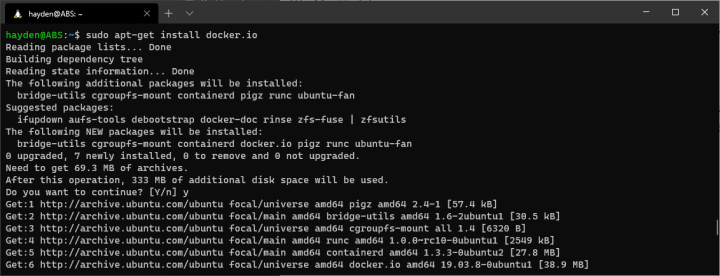
기본적으로 Canonical에서 제공하는 Docker를 설치할 수 있습니다(Docker Hub에서 제공하는 최신 Docker Engine을 설치하기 위해서는 아래 명령어 대신 이 링크의 튜토리얼을 따라하시면 됩니다. 영어입니다.)

sudo apt -y install docker.io
WSL2 Ubuntu에 Canonical 기본 레포지토리 Docker(docker.io 패키지) 설치

sudo 없이 docker 명령어를 이용하기 위해서는, 추가로 아래 명령어를 입력할 수 있습니다(보안상 이슈가 있을 수 있으며, 선택입니다):

sudo adduser $USER docker

NVIDIA Container Toolkit 설치

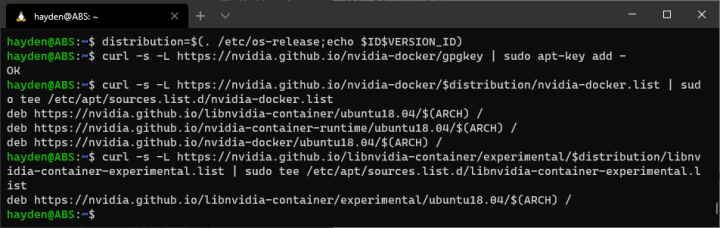
변수 distribution을 설정하고, NVIDIA 레포지토리 GPG 키를 가져온 뒤, NVIDIA 레포지토리를 Ubuntu의 apt 패키지 매니저에 추가합니다.

distribution=$(. /etc/os-release;echo $ID$VERSION_ID)

curl -s -L https://nvidia.github.io/nvidia-docker/gpgkey | sudo apt-key add -

curl -s -L https://nvidia.github.io/nvidia-docker/$distribution/nvidia-docker.list | sudo tee /etc/apt/sources.list.d/nvidia-docker.list

curl -s -L https://nvidia.github.io/libnvidia-container/experimental/$distribution/libnvidia-container-experimental.list | sudo tee /etc/apt/sources.list.d/libnvidia-container-experimental.list
Apt 패키지 매니저에 NVIDIA 레포지토리 추가

Ubuntu의 기본 레포지토리를 한국 서버로 변경합니다. apt updateapt upgrade 등의 작업이 훨씬 빨라집니다.

sudo sed -i "s/archive.ubuntu.com/mirror.kakao.com/g" /etc/apt/sources.list

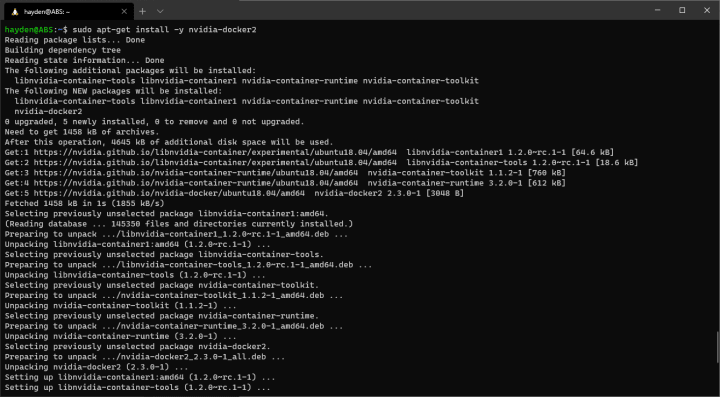
Ubuntu의 apt 레포지토리를 초기화한 뒤, NVIDIA 런타임을 설치합니다.

sudo apt update && sudo apt install -y nvidia-docker2
apt 패키지 매니저를 통한 NVIDIA 컨테이너 런타임 설치 과정

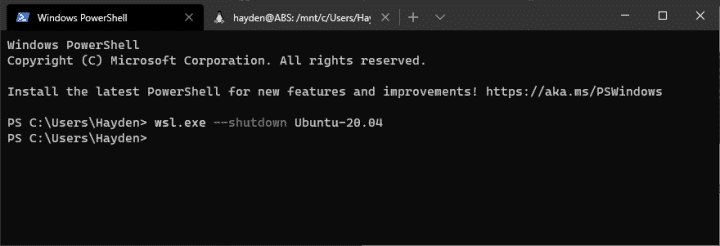
설치 완료 시, 모든 Ubuntu 터미널을 종료하고, Powershell 터미널을 열어 모든 Ubuntu WSL 인스턴스를 종료합니다:

wsl.exe --shutdown Ubuntu
WSL Ubuntu 인스턴스 종료

GPU 컴퓨팅 테스트

새로운 Ubuntu 터미널을 열어, Docker 서비스를 시작합니다.

sudo service docker start

그리고 아래 명령어를 실행합니다:

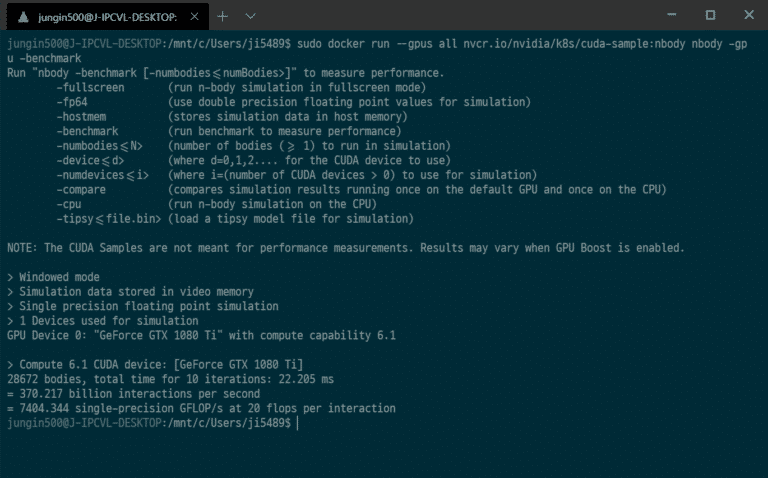
sudo docker run --gpus all nvcr.io/nvidia/k8s/cuda-sample:nbody nbody -gpu -benchmark

모든 과정이 이상없이 진행되었다면, 아래와 같이 GPU의 성능 정보들이 정상적으로 표시됩니다:

CUDA sample 코드 실행 결과

Tensorflow 컨테이너 시작하기

새로운 Ubutnu 터미널을 열어, 아래 명령어를 실행합니다:

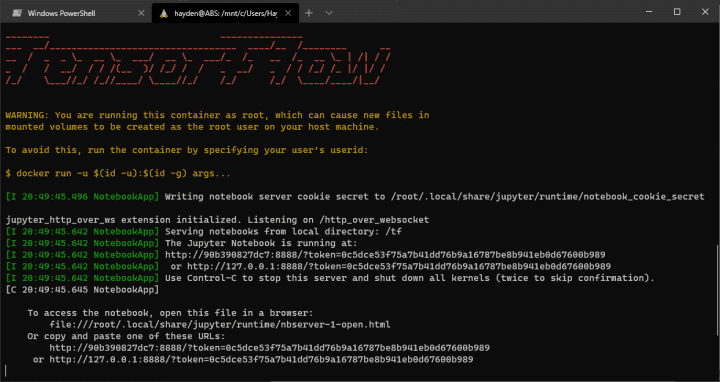
docker run -u $(id -u):$(id -g) -it --gpus all -p 8888:8888 tensorflow/tensorflow:latest-gpu-py3-jupyter
Tensorflow 실행 가능한 Jupyter Notebook가 GPU와 함께 구동

또다른 새로운 Ubuntu 터미널을 열어, wslview를 입력 후, 그 뒤에 Jupyter Notebook URL을 입력합니다. 단, 여기서 127.0.0.1localhost로 바꿔 입력합니다!

wslview http://localhost:8888/?token=a83a1ad288a7bf1bd1deb694c8a7f19223c8d0baa7d5fb3c

기본 브라우저에 Jupyter Notebook이 실행되고, 이를 통해 GPU 가속이 가능한 Tensorflow 라이브러리를 사용할 수 있습니다! 이제 Tensorflow, CUDA를 WSL에서 사용할 수 있습니다.

Related blog posts

Additional resources

번역 원본

https://ubuntu.com/blog/getting-started-with-cuda-on-ubuntu-on-wsl-2

(Reference) Build 64-bit kernel for Raspberry Pi 3, using native tools

Reference

Guide on how to build a 64-bit kernel for the Raspberry Pi 3 & 3+ boards, on device, using native 64-bit cross-compilation tools. Using kernel branch 4.14 at time of writing.

The SoC on the Raspberry Pi 3 & 3+ supports 64-bit ARM mode, unfortunately raspbian and the foundation does not provide 64-bit support or userland even if they are advertising the Pi 3 as a 64-bit platform.

There are 3 ways to get a 64-bit kernel compiled:

  1. Native build on another 64-bit ARM platform
  2. Cross-compilation on another platform
  3. Cross-compilation on the Pi 3 itself

This tutorial will explain how to do option number 3. (And will actually work just fine for option number 2 as they are pretty much the same).

Note: The tools should work just fine for building a 64-bit kernel for the Raspberry Pi 4 too. Unfortunately the author does not have Pi 4 at this time so kernel configuration, building and booting has not been tested and therefor has been omitted for now.

Note: You will need plenty of space when building as the sources and build results for both the tools and kernel takes quite a lot of space. Also a heat sink is highly recommended if building in parallel.

Time: Speed is relative. The Raspberry Pi 3 is fast or slow, depending on what you compare it to. Even so, it will take a while to build everything, for example C-compiler only gcc will about 85 minutes to build using non-parallel make on a Pi 3.

Install essential build tools and development packages

As we need to build the tools we need, that is aarch64 binutils and gcc, we need to install the required build tools first. Start by first installing required dependencies for compilation of these tools:

sudo apt-get install build-essential libgmp-dev libmpfr-dev libmpc-dev libisl-dev libncurses5-dev bc git-core bison flex

Build the cross compilation tools

To be able to cross-compile we need to build a couple of tools ourselves as they are not provided. These are aarch64 versions of binutils (assembler, linker) and gcc (C compiler). We will install these tools in their own prefix or path,

/opt/aarch64

We will also use out-of-source build directories to keep the sources clean. This is handy if you need to re-configure, re-build or start over without needing to clean the source tree.

Build and install Binutils

We will start with building the low-level tool, binutils. Binutils is basically an assembler and linker.

Download the latest binutils, (Tested with 2.29.1 at time of writing, feel free to try any later versions (2.30 is reported not to work!) when available)

wget https://ftp.gnu.org/gnu/binutils/binutils-2.29.1.tar.bz2

Untar the binutils archive

tar xf binutils-2.29.1.tar.bz2

Configure build and install

mkdir binutils-obj
cd binutils-obj
../binutils-2.29.1/configure --prefix=/opt/aarch64 --target=aarch64-linux-gnu --disable-nls
make -j4
sudo make install

Binutils is now installed, to be able to use it directly, add “/opt/aarch64/bin/” to your path:

export PATH=$PATH:/opt/aarch64/bin/

Build and install GCC

Next up is gcc, the C compiler. We will build a minimal compiler for C only and no userland support. This is enough to get a aarch64 kernel compiled.

Download latest stable gcc (Tested with 6.4.0 at time of writing, feel free to try any later version when available):

wget https://ftp.gnu.org/gnu/gcc/gcc-6.4.0/gcc-6.4.0.tar.xz

Untar the gcc archive

tar xf gcc-6.4.0.tar.xz

Next configure gcc and build gcc. We will configure the build for only a minimal C compiler, that is enough for building a kernel.

mkdir gcc-out
cd gcc-out
../gcc-6.4.0/configure --prefix=/opt/aarch64 --target=aarch64-linux-gnu --with-newlib --without-headers \
 --disable-nls --disable-shared --disable-threads --disable-libssp --disable-decimal-float \
 --disable-libquadmath --disable-libvtv --disable-libgomp --disable-libatomic \
 --enable-languages=c
make all-gcc -j4
sudo make install-gcc

Test that the cross gcc runs ok, run:

aarch64-linux-gnu-gcc -v

It should report something close to this is everything is ok:

Using built-in specs.

COLLECT_GCC=aarch64-linux-gnu-gcc
COLLECT_LTO_WRAPPER=/opt/aarch64/libexec/gcc/aarch64-linux-gnu/6.4.0/lto-wrapper
Target: aarch64-linux-gnu
Configured with: ../gcc-6.4.0/configure --prefix=/opt/aarch64 --target=aarch64-linux-gnu --with-newlib --without-headers --disable-shared --enable-languages=c
Thread model: posix
gcc version 6.4.0 (GCC)

If all is well, then you can continue to building the kernel itself!

Optional: libgcc

The C-only compiler we built above is enough for building a Linux kernel and is enough for this guide. But, if you would like to for example build and use u-boot, then you will need to build libgcc, a static library that contains shared code and various helper functions. Building and installing libgcc is fortunately easy, just do the following after building gcc:

make all-target-libgcc
make install-target-libgcc

Build the Linux kernel

Now you have a toolchain that is able to build 64-bit ARM kernels. So the next step is to download the Raspberry Pi kernel sources, configure them and build a 64-bit kernel and modules.

Download Linux kernel sources

Get the most up to date stable branch kernel sources (4.14 branch at time of writing) directly from the Raspberry Pi GitHub repository with

git clone --depth=1 -b rpi-4.14.y https://github.com/raspberrypi/linux.git
Keeping sources fresh

The Linux kernel is a moving target and evolves almost daily. To keep updated with latest changes, run the following command in the directory you checked out above:

git pull

Configure Linux kernel for 64-bit Raspberry Pi 3

We use output directory for kernel build so we can use the same source tree for other configuration (32-bit for example)

mkdir kernel-out
cd linux
make O=../kernel-out/ ARCH=arm64 CROSS_COMPILE=aarch64-linux-gnu-  bcmrpi3_defconfig

The kernel build is now configured with a default configuration for a 64-bit Raspberry Pi kernel.

In case you need to customize the configuration (Add support for some specific hardware, trim out things you don't need or otherwise mess around with the configuration) run

make O=../kernel-out/ ARCH=arm64 CROSS_COMPILE=aarch64-linux-gnu- menuconfig

and adjust the configuration for your needs.

Build the kernel and modules

Next build the kernel and modules with:

make -j4 O=../kernel-out/ ARCH=arm64 CROSS_COMPILE=aarch64-linux-gnu-

If all goes well, as it should, you should now have a 64-bit kernel, modules and device tree built.

Keep up with kernel development

The Linux kernel evolves and so does the Raspberry Pi kernel too. To keep up with development changes you can ask git to download changes to your kernel source tree. To do that run the following command in the kernel source locations:

git pull

This will download any changes made to the kernel source.

Update kernel configuration

After pulling in changes I personally like to always run, just in case:

make -j4 O=../kernel-out/ ARCH=arm64 CROSS_COMPILE=aarch64-linux-gnu- oldconfig

Next step:

Booting 64-bit kernel on Raspberry Pi 3

Changelog:

11/04/2018 – 13:15

  • Update to 4.14

(Reference) 딥러닝에서 사용되는 여러 유형의 Convolution 소개

Reference

An Introduction to different Types of Convolutions in Deep Learning을 번역한 글입니다. 개인 공부를 위해 번역해봤으며 이상한 부분은 언제든 알려주세요 🙂

Convolution의 여러 유형에 대해 빠르게 소개하며 각각의 장점을 알려드리겠습니다. 단순화를 위해서, 이 글에선 2D Convolution에만 초점을 맞추겠습니다

Convolutions

우선 convolutional layer을 정의하기 위한 몇개의 파라미터를 알아야 합니다

2D convolution using a kernel size of 3, stride of 1 and padding

역자 : 파란색이 input이며 초록색이 output입니다

  • Kernel Size : kernel size는 convolution의 시야(view)를 결정합니다. 보통 2D에서 3×3 pixel로 사용합니다
  • Stride : stride는 이미지를 횡단할 때 커널의 스텝 사이즈를 결정합니다. 기본값은 1이지만 보통 Max Pooling과 비슷하게 이미지를 다운샘플링하기 위해 Stride를 2로 사용할 수 있습니다
  • Padding : Padding은 샘플 테두리를 어떻게 조절할지를 결정합니다. 패딩된 Convolution은 input과 동일한 output 차원을 유지하는 반면, 패딩되지 않은 Convolution은 커널이 1보다 큰 경우 테두리의 일부를 잘라버릴 수 있습니다
  • Input & Output Channels : Convolution layer는 Input 채널의 특정 수(I)를 받아 output 채널의 특정 수(O)로 계산합니다. 이런 계층에서 필요한 파라미터의 수는 IOK로 계산할 수 있습니다. K는 커널의 수입니다

Dilated Convolutions ( 확장된 Convolution )

(a.k.a. atrous convolutions)

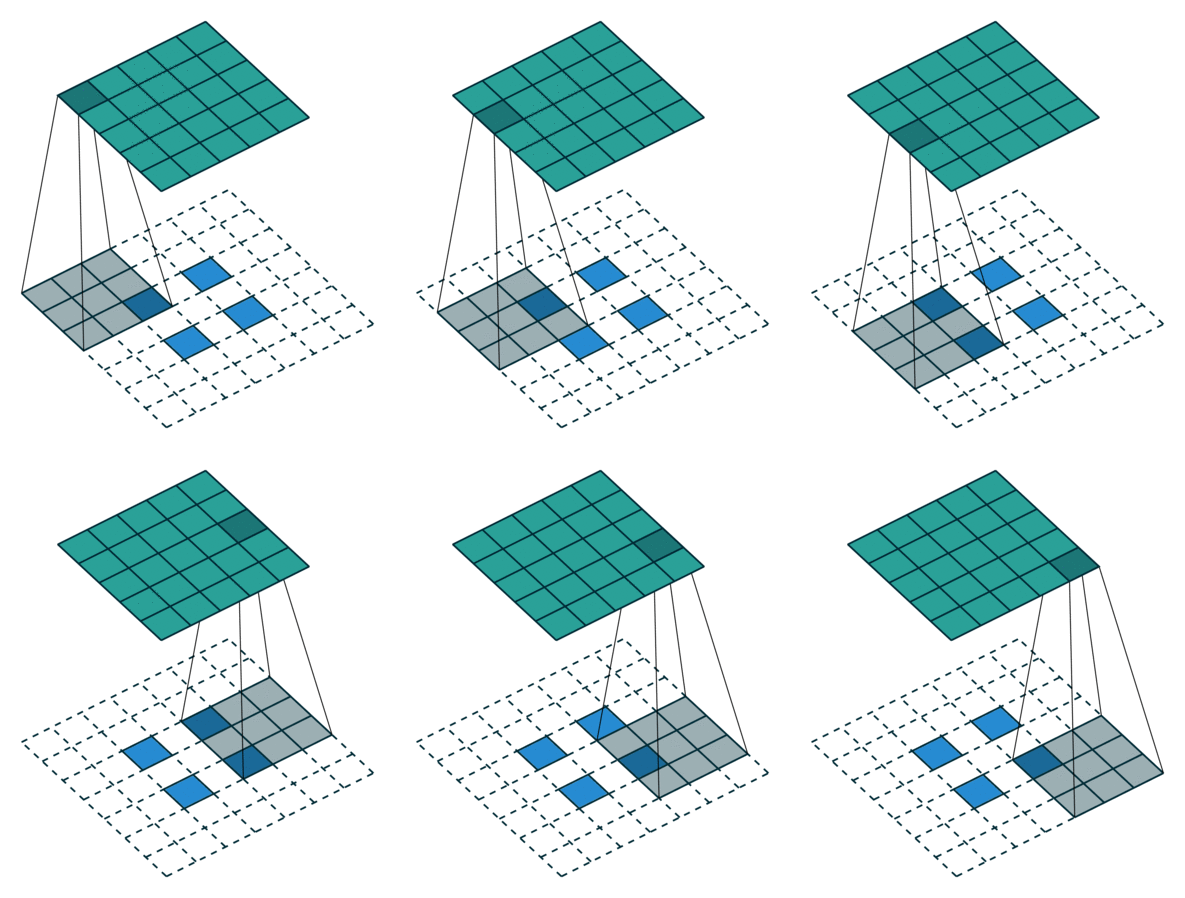
2D convolution using a 3 kernel with a dilation rate of 2 and no padding

Dilated Convolution은 Convolutional layer에 또 다른 파라미터인 dilation rate를 도입했습니다. dilation rate은 커널 사이의 간격을 정의합니다. dilation rate가 2인 3×3 커널은 9개의 파라미터를 사용하면서 5×5 커널과 동일한 시야(view)를 가집니다.
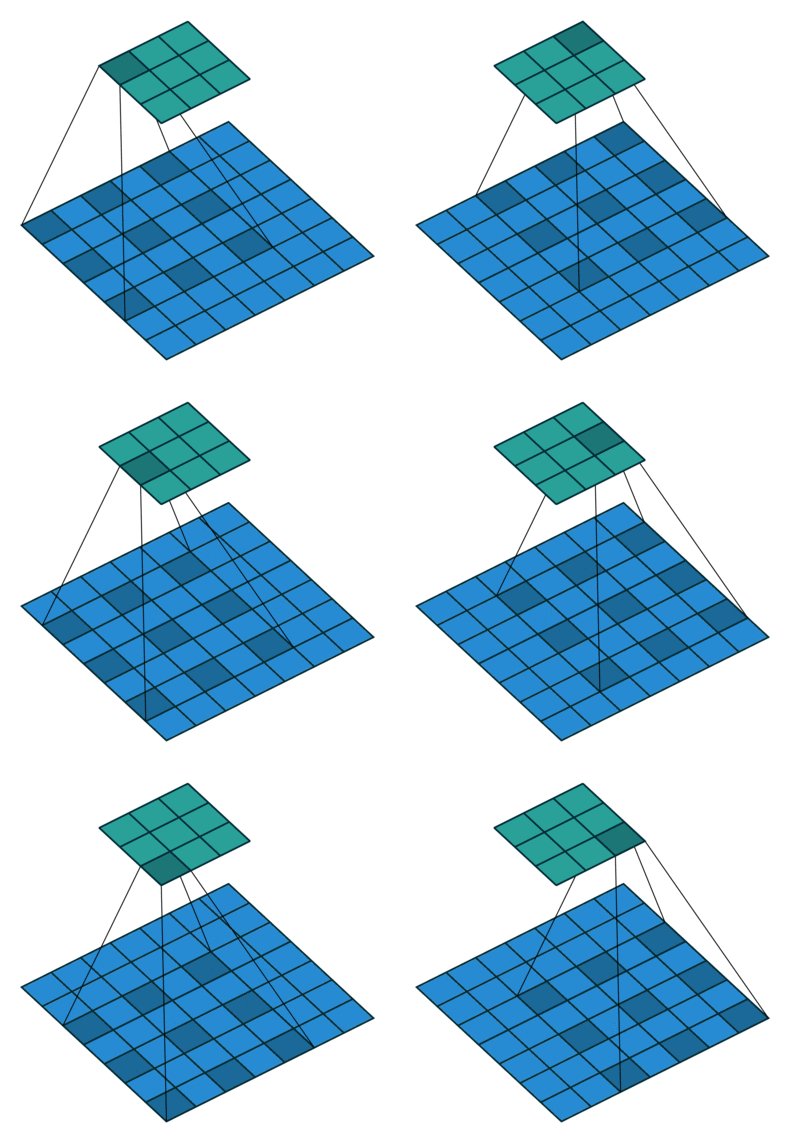
5×5 커널을 사용하고 두번째 열과 행을 모두 삭제하면 (3×3 커널을 사용한 경우 대비)동일한 계산 비용으로 더 넓은 시야를 제공합니다.
Dilated convolution은 특히 real-time segmentation 분야에서 주로 사용됩니다. 넓은 시야가 필요하고 여러 convolution이나 큰 커널을 사용할 여유가 없는 경우 사용합니다

역자 : Dilated Convolution은 필터 내부에 zero padding을 추가해 강제로 receptive field를 늘리는 방법입니다. 위 그림에서 진한 파란 부분만 weight가 있고 나머지 부분은 0으로 채워집니다. (receptive field : 필터가 한번 보는 영역으로 사진의 feature를 추출하기 위해선 receptive field가 높을수록 좋습니다)
pooling을 수행하지 않고도 receptive field를 크게 가져갈 수 있기 때문에 spatial dimension 손실이 적고 대부분의 weight가 0이기 때문에 연산의 효율이 좋습니다. 공간적 특징을 유지하기 때문에 Segmentation에서 많이 사용합니다

Transposed Convolutions

(a.k.a. deconvolutions or fractionally strided convolutions)

어떤 곳에선 deconvolution이라는 이름을 사용하지만 실제론 deconvolution이 아니기 때문에 부적절합니다. 상황을 악화시키기 위해 deconvolution이 존재하지만, 딥러닝 분야에선 흔하지 않습니다. 실제 deconvolution은 convolution의 과정을 되돌립니다. 하나의 convolutional layer에 이미지를 입력한다고 상상해보겠습니다. 이제 출력물을 가져와 블랙 박스에 넣으면 원본 이미지가 다시 나타납니다. 이럴 경우 블랙박스가 deconvolution을 수행한다고 할 수 있습니다. 이 deconvolution이 convolutional layer가 수행하는 것의 수학적 역 연산입니다.

역자 : 왜 deconvolution이 아닌지는 링크에 나와있습니다

Transposed Convolution은 deconvolutional layer와 동일한 공간 해상도를 생성하기 점은 유사하지만 실제 수행되는 수학 연산은 다릅니다. Transposed Convolutional layer는 정기적인 convolution을 수행하며 공간의 변화를 되돌립니다.

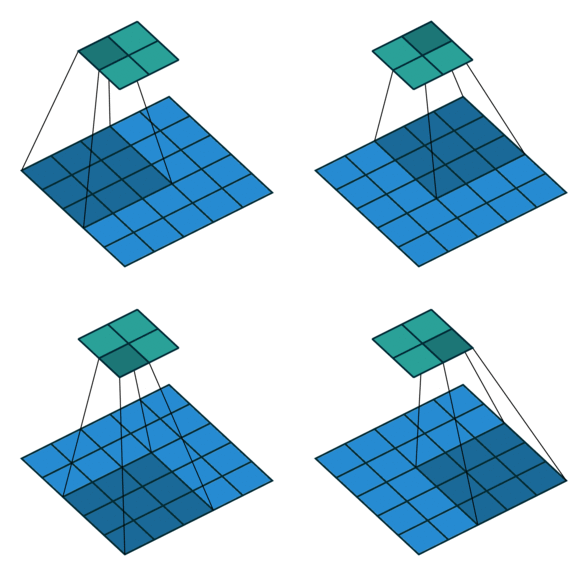
2D convolution with no padding, stride of 2 and kernel of 3

혼란스러울 수 있으므로 구체적인 예를 보겠습니다. convolution layer에 넣을 5×5 이미지가 있습니다. stride는 2, padding은 없고 kernel은 3×3입니다. 이 결과는 2×2 이미지가 생성됩니다.

이 과정을 되돌리고 싶다면, 역 수학 연산을 위해 input의 각 픽셀으로부터 9개의 값을 뽑아야 합니다. 그 후에 우리는 stride가 2인 출력 이미지를 지나갑니다. 이 방법이 deconvolution입니다

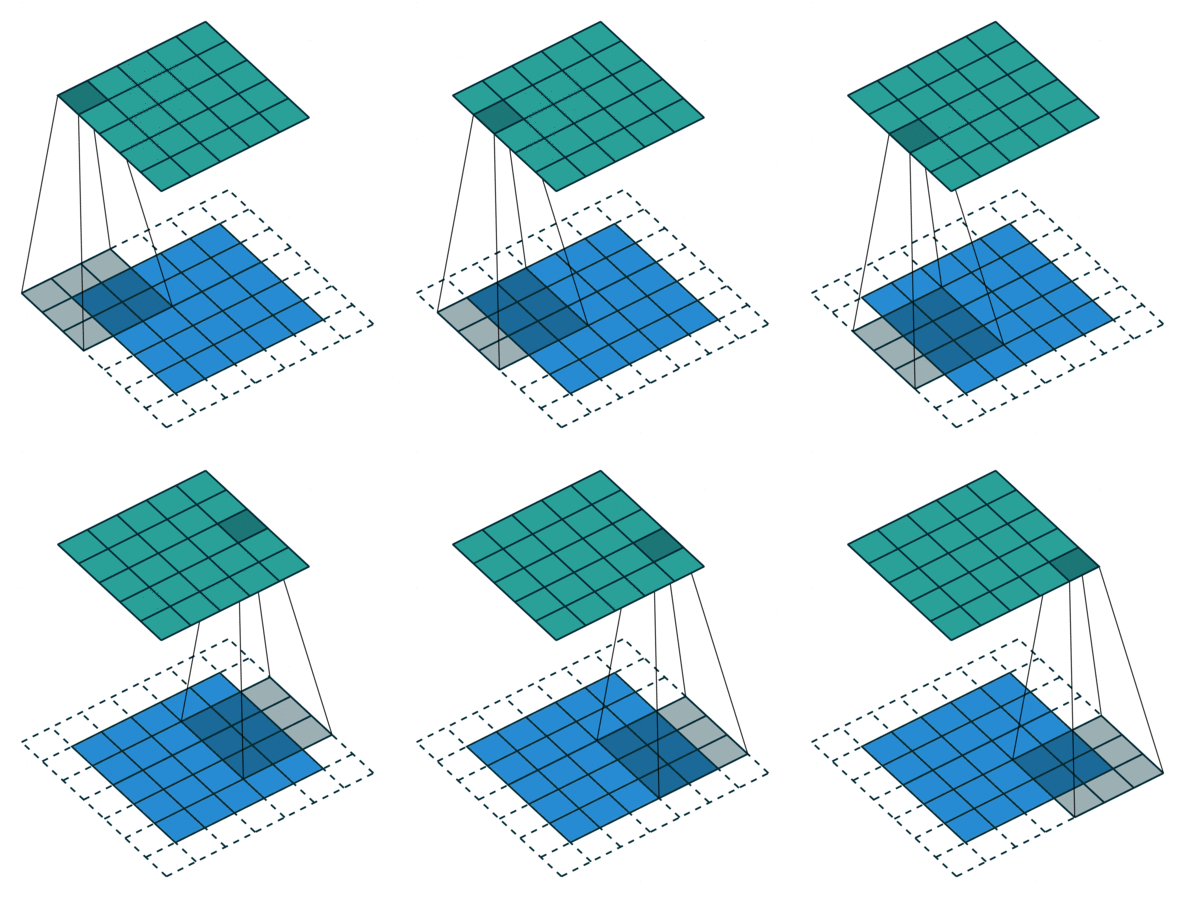
Transposed 2D convolution with no padding, stride of 2 and kernel of 3

transposed convolution은 위와 같은 방법을 사용하지 않습니다. deconvolution과 공통점은 convolution 작업을 하면서 5×5 이미지의 output을 생성하는 것입니다. 이 작업을 하기 위해 input에 임의의 padding을 넣어야 합니다.

상상할 수 있듯, 이 단계에선 위의 과정을 반대로 수행하지 않습니다.

단순히 이전 공간 해상도를 재구성하고 convolution을 수행합니다. 수학적 역 관계는 아니지만 인코더-디코더 아키텍쳐의 경우 유용합니다. 이 방법은 2개의 별도 프로세스를 진행하는 것 대신 convolution된 이미지의 upscaling을 결합할 수 있습니다

역자 : Transposed Convolution는 일반적인 convolution을 반대로 수행하고 싶은 경우에 사용하며, 커널 사이에 0을 추가합니다
위 그림은 일반적인 convolution 연산을 행렬로 표현한 것입니다

transposed convolution 연산을 행렬로 표현한 것입니다. 첫 이미지의 sparse 매트릭스 C를 inverse해서 우변(Y output)에 곱해줍니다. 그러면 Input의 값을 구할 수 있습니다.
정리하면 전치(transpose)하여 우변에 곱해주기 때문에 transposed convolution이라 부릅니다.
Up-sampling with Transposed Convolution 번역 글을 참고하시면 명쾌하게 이해가 될거에요! Convolution Operation은 input values와 output values 사이에 공간 연결성을 가지고 있습니다. 3×3 kernel을 사용한다면, 9개의 values가(kernel) 1개의 value(output, 문지른 후의 결과물)와 연결됩니다. 따라서 many to one 관계라고 볼 수 있습니다
Transposed Convolution은 1개의 value를 9개의 values로 변경합니다. 이것은 one to many 관계라고 볼 수 있습니다.
(2019년 9월) 역자 : 위 convolution 매트릭스 연산의 그림에 오류가 있습니다. 한번 어떤 부분이 오류인지 생각해보신 후, 답이 궁금하시면 댓글을 확인해주세요 🙂 제보해주신 정종원님, 김남욱님 감사합니다

Separable Convolutions

separable convolution에선 커널 작업을 여러 단계로 나눌 수 있습니다. convolution을 y = conv(x, k)로 표현해봅시다. x는 입력 이미지, y는 출력 이미지, k는 커널입니다. 그리고 k=k1.dot(k2)로 계산된다고 가정해보겠습니다. 이것은 K와 2D convolution을 수행하는 대신 k1와 k2로 1D convolution하는 것과 동일한 결과를 가져오기 때문에 separable convolution이 됩니다.

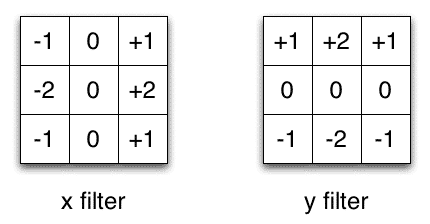
Sobel X and Y filters

이미지 처리에서 자주 사용되는 Sobel 커널을 예로 들겠습니다. 벡터 [1, 0, -1]과 [1, 2, 1].T를 곱하면 동일한 커널을 얻을 수 있습니다. 동일 작업을 하기 위해 9개의 파라미터 대신 6개가 필요합니다. 이 사례는 Spatial Separable Convolution의 예시이지만, 딥러닝에선 사용되지 않습니다

수정 : 사실 1xN, Nx1 커널 레이어를 쌓아 Separable convolution과 유사한 것을 만들 수 있습니다. 이것은 최근 유망한 결과를 보여준 EffNet라는 아키텍쳐에서 사용되었습니다.

뉴럴넷에선 depthwise separable convolution라는 것을 주로 사용합니다. 이 방법은 채널을 분리하지 않고 spatial convolution을 수행한 다음 depthwise convolution을 수행합니다. 예를 들어보겠습니다.

16개의 input 채널과 32개의 output 채널에 3×3 convolutional 레이어가 있다고 가정하겠습니다. 16개의 채널마다 32개의 3×3 커널이 지나가며 512(16*32)개의 feature map이 생성됩니다. 그 다음, 모든 입력 채널에서 1개의 feature map을 병합하여 추가합니다. 32번 반복하면 32개의 output 채널을 얻을 수 있습니다.

같은 예제에서 depthwise separable convolution을 위해 1개의 3×3 커널로 16 채널을 탐색해 16개의 feature map을 생성합니다. 합치기 전에 32개의 1×1 convolution으로 16개의 featuremap을 지나갑니다. 결과적으로 위에선 4068(163233) 매개 변수를 얻는 반면 656(1633 + 163211) 매개변수를 얻습니다

이 예는 depthwise separable convolution(depth multiplier가 1이라고 불리는)것을 구체적으로 구현한 것입니다. 이런 layer에서 가장 일반적인 형태입니다.

우리는 spatial하고 depthwise한 정보를 나눌 수 있다는 가정하에 이 작업을 합니다. Xception 모델의 성능을 보면 이 이론이 효과가 있는 것으로 보입니다. depthwise seprable convolution은 매개변수를 효율적으로 사용하기 때문에 모바일 장치에도 사용됩니다

역자 : 채널, 공간상 상관성 분리를 하는 인셉션 모델을 극단적으로 밀어붙여 depthwise separable convolution 구조를 만듭니다. input의 1×1 convolution을 씌운 후 나오는 모든 채널에 3×3 convolution을 수행합니다. 원글에서 separable convolution의 설명이 부족한 것 같아 PR12의 영상을 보고 이해했습니다
유재준님의 PR-034: Inception and Xception과 이진원님의 PR-044: MobileNet을 보면 이해가 잘됩니다 🙂

Questions?

이것으로 여러 종류의 convolution 여행을 끝내겠습니다. Convolution에 대한 짧은 요약을 가지고가길 바라며 남아있는 질문은 댓글을 남겨주시고, 더 많은 convolution 애니메이션이 있는 Github를 확인해주세요

번역시 참고한 자료

(Reference) COCO Dataset Annotation

COCO 데이터셋 Annotation에 대한 설명을 해 주신 글이 있어, 스크랩해 보았다.

Reference

Annotation 파일 분석

Annotation 파일은 한 줄짜리 json 형식으로 되어 있습니다. 혹시라도, 이 파일을 그냥 vi로 열면 안됩니다. 수백메가 크기의 한 줄 짜리 파일이라, vi가 감당을 못합니다. 그래서, json beautifier를 이용하여 줄바꿈을 해 주어야 분석이 쉽습니다.

https://stedolan.github.io/jq/에서 jq binary를 다운로드 받습니다. 저는 64-bit Ubuntu용으로 다운로드 받아서, 파일 이름이 jq-linux64 네요. 그 다음,

$ jq-linux64 . instances_val2017.json > instances_val2017.beautified.json

이와 같이 하면 줄바꿈이 적용된 JSON 파일인 instances_val2017.beautified.json 파일이 생성됩니다.

이 중에서 instances에 대해 좀 더 자세히 알아보겠습니다.

Instances json file

Instances json file의 첫 부분은 아래와 같이 information과 license의 종류에 대한 내용입니다.

{
  "info": {
    "description": "COCO 2017 Dataset",
    "url": "http://cocodataset.org",
    "version": "1.0",
    "year": 2017,
    "contributor": "COCO Consortium",
    "date_created": "2017/09/01"
  },
  "licenses": [
    {
      "url": "http://creativecommons.org/licenses/by-nc-sa/2.0/",
      "id": 1,
      "name": "Attribution-NonCommercial-ShareAlike License"
    },
    ...
  ],

그 다음엔, 그림 파일에 대한 내용이 나옵니다.

  "images": [
    ...
    {
      "license": 1,
      "file_name": "000000324158.jpg",
      "coco_url": "http://images.cocodataset.org/val2017/000000324158.jpg",
      "height": 334,
      "width": 500,
      "date_captured": "2013-11-19 23:54:06",
      "flickr_url": "http://farm1.staticflickr.com/169/417836491_5bf8762150_z.jpg",
      "id": 324158
    },
    ...
  ],

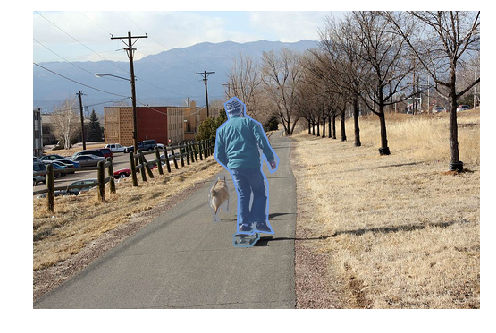
그 다음엔, 각 그림에 대한 annotation 정보가 나옵니다. Annotation이란, 그림에 있는 사물/사람의 segmentation mask와 box 영역, 카테고리 등의 정보를 말합니다. 아래 예는 COCO API Demo에서 사용된 image인 324159 그림의 annotation 중 일부 입니다.

324158
  "annotations": [
    ...
    {
      "segmentation": [
        [
          216.7,
          211.89,
          216.16,
          217.81,
          215.89,
          220.77,

          ...
          212.16
        ]
      ],
      "area": 759.3375500000002,
      "iscrowd": 0,
      "image_id": 324158,
      "bbox": [
        196.51,
        183.36,
        23.95,
        53.02
      ],
      "category_id": 18,
      "id": 10673
    },
    ...
    {
      "segmentation": [
        [
          44.2,
          167.74,
          48.39,
          162.71,
          ...
          167.58
        ]
      ],
      "area": 331.9790999999998,
      "iscrowd": 0,
      "image_id": 324158,
      "bbox": [
        44.2,
        161.19,
        36.78,
        13.78
      ],
      "category_id": 3,
      "id": 345846
    },
    ...
  ],

마지막으로, category 리스트가 나옵니다.

  "categories": [
    {
      "supercategory": "person",
      "id": 1,
      "name": "person"
    },
    ...
  ]
}

(Reference) Custom Image Augmentation with Keras by Ceshine Lee

Reference

The new Tensorflow 2.0 is going to standardize on Keras as its High-level API. The existing Keras API will mostly remain the same, while Tensorflow features like eager execution, distributed training and other deeper Tensorflow integration will be added or improved. I think it’s a good time to revisit Keras as someone who had switched to use PyTorch most of the time.

I wrote an article benchmarking the TPU on Google Colab with the Fashion-MNIST dataset when Colab just started to provide TPU runtime. This time I’ll use a larger dataset (CIFAR-10) and an external image augmentation library [albumentation](https://github.com/albu/albumentations)s.

It turns out that implementing a custom image augmentation pipeline is fairly easy in the newer Keras. We could give up some flexibility in PyTorch in exchange of the speed up brought by TPU, which is not yet supported by PyTorch yet.

Source Code

The notebooks are largely based on the work by Jannik Zürn described in this post:

Using a TPU in Google Colab: Last week, we talked about training an image classifier on the CIFAR-10 dataset using Google Colab on a Tesla K80 GPU…

I updated the model architecture from the official Keras example and modified some of the data preparation code.

Custom Augmentation using the Sequence API

From the Keras documentation:

[Sequence](https://keras.io/utils/) are a safer way to do multiprocessing. This structure guarantees that the network will only train once on each sample per epoch which is not the case with generators.

Most Keras tutorials use the ImageDataGenerator class to generate batch and do image augmentation. But it doesn’t leave much room for customization (unless you spend some time reading the source code and extend the class) and the augmentation toolbox might not be comprehensive or fast enough for you.

Class Definition

Fortunately, there’s a Sequence class (keras.utils.Sequence) in Keras that is very similar to [Dataset](https://pytorch.org/docs/stable/data.html#torch.utils.data.Dataset) class in PyTorch (although Keras doesn’t seem to have its own [DataLoader](https://pytorch.org/docs/stable/data.html#torch.utils.data.DataLoader)). We can construct our own data augmentation pipeline like this:

Note the one major difference between Sequence and Dataset is that Sequence returns an entire batch, while Dataset returns a single entry.

In this example, the data has already been read in as numpy arrays. For larger datasets, you can store paths to the image files and labels in the file system in the class constructor, and read the images dynamically in the __getitem__ method via one of the two methods:

  • OpenCV:cv2.cvtColor(cv2.imread(filepath), cv2.COLOR_RGB2BGR)
  • PIL: np.array(Image.open(filepath))

Reference: An example pipeline that uses torchvision.

Albumentations

Now we use albumentations to define a set of augmentations to be applied randomly to training set and a (deterministic) set for the test and validation sets:

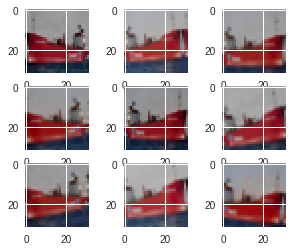
Augmented Samples

ToFloat(max_value=255) transforms the array from [0, 255] range to [0, 1] range. If you are tuning a pretrained model, you’ll want to use Normalize to set mean and std.

Training and Validating

Just pass the sequence instances to the fit_generator method of an initialized model, Keras will do the rest for you:

By default Keras will shuffle the batches after one epoch. You can also choose to shuffle the entire dataset instead by implementing a on_epoch_end method in your Sequence class. You can also use this method to do other dynamic transformations to the dataset between epochs (as long as the __len__ stay the same, I assume).

That’s it. You now have a working customized image augmentation pipeline.

TPU on Google Colab

Model used: Resnet101 v2 in the official example.

Notes to the table:

  1. The sets of augmentations used by GPU and TPU notebook are slightly different. The GPU one includes a [CLAHE](https://albumentations.readthedocs.io/en/latest/api/augmentations.html#albumentations.augmentations.transforms.CLAHE) op while the TPU one does not. This is due to an oversight on my part.
  2. The GTX 1080 Ti results are taken from the official example.

The batch size used by Colab TPU is increased to utilize the significantly larger memory size (64GB) and TPU cores (8). Each core will received 1/8 of the batch.

Converting Keras Models to use TPU

Like before, one single command is enough to do the conversion:

But because the training pipeline is more complicated than the Fashion-MNIST one, I encountered a few obstacles, and had to find ways to circumvent them:

  1. The runtime randomly hangs or crashes when I turn on multiprocessing=True in fit_generator method, despite the fact that Sequence instances should support multiprocessing.
  2. The TPU backend crashes when Keras has finished first epoch of training and starts to run validation.
  3. No good way to schedule training rate. The TPU model only supports tf.train optimizers, but on the other hand the Keras learning rate schedulers only support Keras optimizers.
  4. The model gets compiled four times (two when training, two when validating) at the beginning of fit_generator call, and the compile time is fairly long and unstable (high variance between runs).

The corresponding solutions:

  1. Use multiprocessing=False. This one is obvious.
  2. Run a “warmup” round of one epoch without validation data seems to solve the problem.
  3. The Tensorflow 2.0 version of Keras optimizer seems to work with TPU models. But as we’re using the pre-installed Tensorflow 1.13.1 on Colab, one hacky solution is to sync the TPU model to CPU and recompile the model using an optimizer with a lower learning rate. This is not ideal, of course. We’d waste 5 ~ 20 minutes syncing and recompiling the model.
  4. This one unfortunately I couldn’t find good way to avoid it. The reason why the model get compiled four times is because the last batch has a different size from the previous ones. We could reduce the number to three if we just drop the last batch in training (I couldn’t find a way to do that properly in Keras). Or reduce the number to two if we pick a batch size that is a divisor to the size of the dataset, which is not always possible or efficient. You could just throw away some data to make things easier if your dataset is large enough.

Summary

The TPU (TPUv2 on Google Colab) greatly reduces the time needed to train an adequate model, albeit its overhead. But get ready to deal with unexpected problems since everything is really still experimental. It was really frustrating for me when the TPU backend kept crashing for no obvious reason.

The set of augmentations used here is relatively mild. There are a lot more options in the albumentations library (e.g. Cutout) for you to try.

If you found TPU working great for you, the current pricing of TPU is quite affordable for a few hours of training (Regular $4.5 per hour and preemptible $1.35 per hour). (I’m not affiliated with Google.)

In the future I’ll probably try to update the notebooks to Tensorflow 2.0 alpha or the later RC and report back anything interesting.

(This post is also published on my personal blog.)